
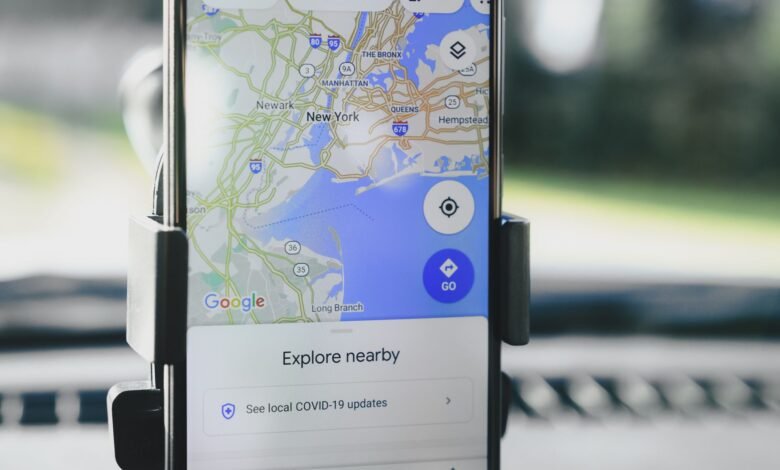
The Timeline feature is disabled by default, so you cannot determine that Google has not recorded anything based on an empty Google Timeline page. Once enabled, Google Timeline will track your precise location throughout the course of a day, even when every application that is made by Google has been shut off. Google Timeline will take the information it collects and translate it into a personal map of your daily travels, or the various places you have visited and the route that you took to visit those places over the course of a single day.
There is a catch to this entire process. You will find that the map created is stored on your device, as opposed to located online within your Google account. Therefore, it is important to remember that deleting your Google Timeline account will not erase the evidence of your location from your device. Also, there are two options that must be checked and both must be selected differently from one another; the options you selected in your account do not save your Google Timeline information, they will only record the locations you visit through your other Google services after you close your account. Before you click on anything within your account, make sure you understand what Google Timeline is now, as it no longer functions the same way the older version of Google Timeline did.
What Google Timeline Is Now — and Why It Isn’t on Your Computer Anymore
The Google account setting called Google Timeline is turned off by default, but it can be activated by a user choosing to do so. This service is also now part of the Google Maps application on mobile devices and does not have any web-based options. With Google Timeline enabled, all devices that use a user’s account can build a personalized listing of locations that the user has visited and the route taken to get there.
The name still trips people up
The setting used to be called Location History, and Google’s own notification emails about the storage change described Timeline as “formerly called Location History.” Older articles, and some older screens, still use the old name for the same control. Google’s help page for computers now carries the current name and nothing else, so if you’re hunting for my location history in a settings panel and can’t find it, look for Timeline instead.
This renaming is just one part of a much larger transition Google started in 2024, which included moving the location history from the Google servers to each individual device (e.g., phone, tablet). 9to5Google tracked the rollout as it reached accounts in waves rather than all at once. As such, since there was an incremental rollout of this transition, it’s possible for users with the same version of the application to have different appearances of the application.
One map per phone
The timeline within your account is not anymore one record covering all of your devices. Now, with multiple devices linked to your Google account, each device saves its visit data and routes locally. This means that your phone’s Timeline will not include the trip history recorded by your tablet.
This feature on Google Maps may appear to be missing from your device due to your device having an older version than what is required. If you use the Android operating system, the app version should be Google Maps 11.106 or above. If you are using the Android Go operating system, the Timeline feature is not supported. If you use an iOS/iPadOS device (iPhone/iPad), the app version should be 6.93 or greater (for iPhone/iPad), or else the Timeline will not be available. If your Google account shows the age of the account holder to be less than 18, then the Timeline feature will be off or unavailable.
Why your browser shows nothing
The web-based version of Google Maps has been completely eliminated, according to Google, and based on the support page for Google Maps on computers, the reason for the removal is that the Timeline data is pulled from your device so that you cannot access your Timeline through Google Maps on a computer; this page provides links to the mobile app instead.
Many users continue to look for a desktop version of Timeline, as the directions for accessing it are easy to find. A national science magazine wrote an article in October 2024 suggesting that users should click on “Your Timeline” from the drop-down menu when using Google Maps on the web, and one of the forum posters in Google’s support community reported that when they clicked on this link, they were met with the message, “Timeline is no longer available through web browsers.” Therefore, if you have a blank tab open in your web browser, it does not mean that you have lost your Timeline history; it simply means that you have looked in the wrong place.
How the record is currently being stored has a significant impact on the implications of this change moving forward.
Where Your Timeline Actually Lives — and What “On Your Device” Really Means
According to Google’s location policy, the Timeline feature will save precise location information to a private map located on the user’s devices, whether or not the Google app is currently open.
The above is a statement about Google storing user data and does not address Google respecting user privacy; therefore, readers must determine where they go from here based on this distinction.
What “saved to your device” changes
Earlier, when Google mentioned location history, they were referring to the information contained in your Google account. However, now Google has changed the way they keep up with location history information by storing all location history on your mobile device. This change has two major implications: First, even if you delete a Timeline from your Google account, that action will not affect the copy of the Timeline that exists on your mobile device; Second, if you lose your mobile device, you will lose the Timeline, unless you created a backup.
The reason behind this change was that Google has completely removed all of the location history records from their servers as of July 2025. Therefore, Google informed the Supreme Court that they could no longer respond to geofence warrants based on location history data. Criminal Legal News reports that Google told the Supreme Court in March 2026 it can no longer respond to geofence warrants based on Location History. You now have an alternative; you have access to your own record rather than relying on Google to provide this information in bulk. However, you must remember that this record will cease to exist when you lose your mobile device.
What survives what
The table below shows which copy lives through the events that actually happen to phones.
| Event | Copy on your phone | Encrypted backup |
|---|---|---|
| You lose or damage the phone | Gone | Survives, if backup was on |
| Factory reset, or clearing Google Play services data | Gone | Survives, if backup was on |
| You delete the Google Maps app (iPhone) | Gone | Survives, if backup was on |
| You delete Timeline data in the app | Gone on that device only | Unaffected until you delete backups |
| Auto-delete window passes | Older entries removed | Reflects the deletion after a few days |
The best row to look at is the fourth one. According to Google’s own help page, changes or removed items from Google Maps on an individual device do not get updated across all devices. So if you delete something from Google Maps on your phone, it won’t delete it from your tablet. Deleting something from Google Maps via your account on a desktop computer is treated the same way.
On-device doesn’t mean invisible
According to Google, there are many uses for Timeline data. Google’s help page mentions that among others, Timeline data can be used for displaying popular times and environmental awareness regarding anonymized location data, fraud detection, and enhancements of the advertisements/products/service offered by Google. Depending on the settings used by the user on their device, Timeline Data can also provide local businesses with a way of estimating the number of customers who came into their stores as a result of clicking or browsing their advertisements. Google states that this is done by providing advertisers with estimates based on location data, and Google claims that no personal data about individual users will be provided to advertisers; the company is providing its own statement regarding this subject and it has not undergone any sort of independent auditing.
Timeline data is also not collected in a uniform manner. According to Google, a user’s precise location may be collected multiple times per minute when a user is navigating to a specific destination, while when the phone is idle, Google will only collect a user’s precise location about once every several hours. Because of this discrepancy in the manner in which Timeline data is collected, a record of a user’s travels via Timeline data will contain a large amount of data for a road trip and a significantly smaller amount of data for a slow week at home.
Backup, Auto-Delete, and the Choice You Can’t Make Both Ways
Per Google’s instructions, it is impossible to have both the backup and auto-delete functions enabled within the application. Google clearly states that in order to activate the backup you must disable the auto-delete; therefore before you change either switch, you must first make a decision about if you want to keep or remove the map.
What backup actually is
When you enable Backup of your Timeline, you will save an encrypted version of your Timeline on Google’s servers. Backup is enabled for each device individually, meaning if you have two smartphones in your house, you will need to enable it for both devices. Backups are not created immediately after changes are made to your Timeline. According to the Maps help page for iPhone and iPad users, it will take some time (possibly up to several days) before changes to your Timeline are reflected in your backups. Therefore, if you made your backup this morning, it may not contain yesterday’s travel history.
Auto-delete is the way you control how long your data is kept. You can set up your Timeline to automatically delete Timeline data that is older than three months, eighteen months, or thirty-six months, or you can choose not to delete any Timeline data automatically. Accounts that were created as part of the migration to Timeline during 2023 were set to automatically delete data from the Timeline for three months unless the person setting up their account changed this setting. If you did not select a time frame, then you may very likely be set to automatically delete data from your Timeline after three months.
The failure mode nobody warns you about
Encrypted backups are bound to the device that first trusted the encryption; therefore, once that device can no longer be verified, no new phone will be able to access the backup.
This is not just a theoretical situation. In January 2026, a Google Help Community thread had someone whose timeline had been enabled for over six months reporting that they could see the last month’s data, but every time they tapped the backup button, they were only given the message “your encrypted data is locked on this device.” A Gold Level Product Expert commented on this user’s issue, stating that the data is bound to the device which initially trusted the encryption and that there is no way to re-associate a trusted device or to fix the problem. There were 21 other users who marked the same question.
The thread has a subsequent reply posted in February 2026 which mentions that there is now a prompt in the application to recover the backup via a screen lock, but the user also indicated that they continue to receive the original error message. Therefore, it is prudent to treat backups as a conditional safety net rather than a guarantee.
Comment thread suggestions — resetting a password over and over again, or deleting & re-adding your Maps cache (clearing the cache and data) to “jiggle” the encryption state — are unlikely to be successful. Clearing the app data on your device is not an effective way of fixing the issue, and if the copy of your map data is you are trying to retrieve is on the same device, then this will destroy that copy. Thus, this method should not be attempted.
Decide before you tap
To obtain the history, disable Auto Delete and enable Backups, as well as create an export yourself. If you desire the deletion of your entire Timeline, keep your backups off and select the Delete option located in the upcoming section. Turn Off Backups and Delete does not result in any data being lost from devices that were previously backed up using the timeline feature; therefore, it is safe to choose the deletion method later.
Turning It Off, Deleting It, and Picking How Long It Keeps
According to information from Google, if you delete the Timeline data from an iPhone or iPad, it will be completely irretrievable at that point. You cannot go back into the Timeline and undo any deletions; so if you need access to that Timeline data, make sure to export it before deleting. The method for exporting Timeline Data is explained in the next steps.
The last boundary to keep in mind when deleting Timeline data is that if you are deleting Timeline data on your smartphone, it does not delete that Timeline data on your tablet. Therefore, you will need to repeat the above mentioned steps for all devices where The Timeline has been turned on.
On Android
The Android Maps Help by Google indicates this sequence as of September 2026 based on a review of the active page. The Location option must be selected first, and the application must be version 11.106 or later.
- Open Google Maps and tap your profile picture or initial, then Your Timeline.
- Tap More, then Location & privacy settings.
- Under “Location settings,” check that it says “Location is on.” If it doesn’t, tap Location is off and turn on Location.
- Tap Timeline is on.
- From the dropdown, choose Turn off or Turn off and delete activity.
- To set retention instead, go back to Location & privacy settings and tap Auto-delete Timeline, then pick 3 months, 18 months, 36 months, or Don’t auto-delete activity.
On iPhone and iPad
To follow the iPhone path, in addition to enabling Google Maps Location Services to the Always setting, you must also have the Background App Refresh setting set to On in order for your Timeline to properly function, according to the help pages of the Google Account.
- Open Google Maps and tap your profile picture or initial, then Your Timeline.
- Tap More, then Location & privacy settings.
- If it says Location Services is not set to always, tap it, then tap Location, then Always.
- Tap Timeline is on, then choose Turn off or Turn off and delete activity.
- Auto-delete lives in the same panel, with the same three windows.
The two “off” options aren’t the same
Switching off stops new activity from being recorded and won’t affect the current mapping. Switching off and also deleting your activity will delete everything that’s there now. Until you’ve deleted your Timeline data or your auto-deletion window passes, Google will retain your previous Timeline data, so switching off without deleting anything will have no effect whatsoever on what you once had.
To delete only a portion of your previous Timeline data, go to the Location & Privacy settings to delete all of your previous Timeline data or to delete a specific time range, and also from within Your Timeline, you can delete a single day’s visit or a visit from one date to another without having to first turn the Timeline feature off.
Getting It Back, Moving It Over, and Getting It Out (Including Takeout)
Which route helps depends on which copy still exists. Work out your case before you try anything.
- The map is still on a device that works: export it from that device.
- The map is in an encrypted backup you can still open: import it in the Maps app under Your backups.
- Neither copy survives: there’s no path back, and no support route can rebuild it.
Exporting a copy you control
To export your Timeline data from an Android device, go to: Settings > Location > Location services > Timeline > Export Timeline data, continue, and save. Once you’ve exported the file it will be located in your downloads.
This is not just an assumption; Google has provided documentation showing that the Android export path is accurate. In December 2024, a Google Help Community post indicates that 56 people had the same question as the original poster, and a Diamond Product Expert provided the aforementioned export route, which the original poster confirmed worked. The response from the member indicates that by adding the downloads folder for their device to the Google Drive sync option, they can easily sync their exports to other devices without having to perform a separate step.
On the iPhone, tap your profile photo in Maps, select Settings, then Location & Privacy, and finally tap on Export Timeline data to use the share option to save the exported file. The exported file will be stored with the name of location-history.json, according to Google.
An export is a snapshot. It won’t update itself, so a copy made in March tells you nothing about June. That’s the honest trade: durable, but not current.
Why Takeout won’t give you your map
Google Takeout can download all of your account data up to the current day, but the Google Maps Timeline does not operate at an account level anymore. When you download your Timeline, it will contain a directory where you will find a Settings.txt file and another text file called Encrypted Backups.txt, which only contains a line indicating that Google has encrypted backups stored for your Timeline data.
This Encrypted Backups.txt file acts as a place holder for the real data, and as of now, there is no way to decrypt these backups on your own. In fact, as referenced in the Google Support Forum thread dated December 2024, a user asked the same question and received no response from anyone at Google regarding how they can decrypt their backups. If your intention for maintaining a record of your Timeline data was to download it from Google Takeout at some point in the future, you should take this into consideration and reassess your approach.
If your history already vanished
Google sent an email to impacted users in March 2025 that informed them of a technical glitch that caused an unexpected deletion of some users’ Timeline-data; if the impacted user had backup currently enabled and/or a recent encrypted backup, they might be able to recover their deleted timeline data. Malwarebytes reported the email and noted that users who received the email for recovery didn’t have success recovering timeline data using the recovery steps given in the email.
Therefore, each way to recover timeline data is based on the existence of either a backup or a maintained archive. To attempt to recover timeline data recovery, users must go back to the Maps app, open Your Timeline, tap the cloud icon in the top right corner, and then look for an import option in the backup section of Your Backups, and the user should also only expect to be successful in importing restored backup files into their timeline, if the backup file was actually having maintained copies to import from.
Moving to a new phone
When you keep your old device turned on, you can turn on Backup at the same time before switching over to your new device. Once you have turned on Backup, on your new device, open your timeline, select the cloud icon, locate your old device under the list of backups, and choose the option to Import. If you miss the first step of turning on Backup before transferring data over, you will not know that you have a problem until after you have already gotten rid of your old device to find out that nothing was backed up to your new device.
After Timeline Is Off: What Else Is Still Saving Your Location
The Timeline feature is only one method of controlling the location of your data to Google, but there may be other options. If you disable or delete data from the Timeline, the Search Services History and Web & App Activity settings are enabled, which means Google can track and maintain records of your location while using other Google Services, Applications or websites.
When using the Timeline, the saved location is very different from using a map to pinpoint exact coordinates. According to Google, it uses a general region or area based on your IP address and a general region from your mobile device’s GPS coordinates, but does not save the specific GPS coordinates that were sent to Google — only an area. It is worth noting that Google deletes any IP-based and device GPS data after 30 days from your Search Services History and Web and App activity.
The setting names are changing
Google has separated Search Services History and Personalized Recommendations for its Search functions from Web & App Activity by creating two separate settings: Search Services History and Personalized Recommendations. Google will be rolling this change out (so keep checking periodically) over the next few months. The new settings will inherit your most recent old settings, with one important exception. If you previously had Web & App Activity turned on, but Search Personalization turned off, the only setting turned on is Search Services History. The new Search Services History will also include new types of content from your interactions. This could include Lens images, uploaded files, or images and files recorded as a result of a voice search.
Because of the change in the structure of the Search Services History/Personalized Recommendations interface, the panels you see in your settings may differ from what is described in the articles. If you don’t see a particular setting, refer to the help section of your console and search for the setting that is active in your console. In fact, if you experience a “where’s that setting?” moment, it may just be a rollout gap, not an issue on your part.
| Setting | What it saves | What turning it off stops |
|---|---|---|
| Timeline | Precise location on each device, plus routes and visits | New Timeline recording on that device |
| Search Services History | Activity across Search, Maps, Shopping, Flights, Hotels, Translate, News, with general area and optional media | New Search-services history, including that general area |
| Web & App Activity | Activity across other Google services, with general area | New activity saving for those services |
The last two rows together clearly illustrate the lack of a traditional map from either, and a rough approximation of location(s) of when service was used. Disabling one will not affect the other, nor do either of them connect with Timeline.
What this switch doesn’t reach
According to Google, changes to the device’s Location Services settings do not affect other location-based services on the device. Google Location Services, Location Sharing, and Find My Device will continue to function normally following any changes made to Location Service settings. The Maps Help content clearly states that Location Sharing considers both the device and the Timeline to be on or off independent of the other. Therefore, while Timeline has been turned off and hence location information no longer appears on the Timeline, this will not affect Navigation, Live Family Sharing, or locating a Lost Device.
One exception Timeline does handle
Different places around the world are treated differently than others. According to Google, when a user visits a type of place that is considered very personal, such as the following types of places (medical facilities, e.g., Counseling Facilities, Domestic Violence Shelters, Abortion Clinics, Fertility Centres, Substance Abuse Treatment Facilities, Weight Loss Facilities and Cosmetic Surgery Facilities), those visits will be deleted from their Timeline when Google Maps identifies the visit to the location. In fact, most times these types of places have an automated designation upon identification. There are three caveats to this: some designations of these types of places may not be current when identified by Google Maps; there is a delay in Google’s ability to process feedback regarding designations; and the automatic deletion of all Google Maps Timeline data applies only to Timeline, and not to the user’s other settings in Google Maps, which have the ability to save user’s search inquiries, user interactions with, and any photos the user takes at any of the above listed types of places.
Check It Yourself: The Timeline State to Confirm on Every Device
There are 2 reasons for needing a re-check. The record is by device, and Google has stated that rollout of Search services settings is taking place gradually. Therefore, once an App has received its latest update, any changes occurring to a panel should be confirmed with a re-check.
The audit, per device
Run this once for every phone and tablet signed in to the account. Open Maps, tap your profile picture, open Your Timeline, then More ▸ Location & privacy settings.
- Timeline state — does the panel say “Timeline is on” or “Timeline is off”?
- Auto-delete — which window is selected, or is it set to Don’t auto-delete activity?
- Backup — is it on for this device, and when did it last run?
- Other activity settings — is Search Services History or Web & App Activity still on in your activity controls?
- Other devices — how many phones on this account hold their own map?
- Export — if you’re keeping the history, is a copy saved somewhere off the phone?
My Google Activity > Account Level View > Timeline Tab displays whether or not your settings are set to on and how many devices are syncing data. This is the easiest way to see if you’ve forgotten about any devices.
Update your maps and review this list every few months. Icons that moved during the rollout appear to have changed without doing so; they have not changed at all. To determine the difference, you must look for them!
After the Cleanup: Keeping Your Map Erased
Your smartphone has a map that will only access Google’s servers if you enable backing up. So turning off timeline and deleting the timeline will remove your device’s record but not eliminate the footprint from the Google servers. You need to decide whether you want to allow auto-deleting before you stop backing it up and export it, or are going to remove it and have to accept that you have lost that information and cannot go back. After this decision, check your devices for the auto-deleting setting, as your second device that has been signed into the same Google account may have a different history than your primary one. If you do not check and confirm the settings of all your devices, you might lose all of your previous history if you reset any of your devices to factory settings. Additionally, you may think that you are no longer sending your location to Google, but you will continue to do this unless you turn off that setting on all of the devices that are signed into your account.
Frequently Asked Questions
Does turning off Timeline break Google Maps navigation?
You’re incorrect. According to Google, when using location services through any device, there is no change in any of your location service settings. These include Google Location Services Location Sharing & Find Hub. Additionally, the Maps Help page indicates that even if you’re not using the Timeline feature, you can still use Location Sharing. Google Maps Navigation & live-share features will continue to function as they always have.
Can Google still read my Timeline if backup is on?
Google has told us that its backup files are secured with encryption and cannot be accessed by anyone, including Google itself. The backup files can only be accessed from the device where they were created, therefore if you cannot authenticate the original device, you will not be able to access the backup files.
Will my Timeline move to a new phone by itself?
No, the old messages will not automatically transfer over to the new device when you set it up as new. To transfer your messages, you must enable Backup before setting up the new device. In addition, you will have to select Import under Your Backups to retrieve your old messages. If you do not perform these steps, then the messages will remain on your old phone.
I deleted everything. Is my account clear of location data?
Your account may still have location-based information stored in its Search Service History and Web & App Activity settings. If you have either of these settings enabled, Google will still keep location data based on your device and IP Address for 30 days before deleting it from these settings.
