
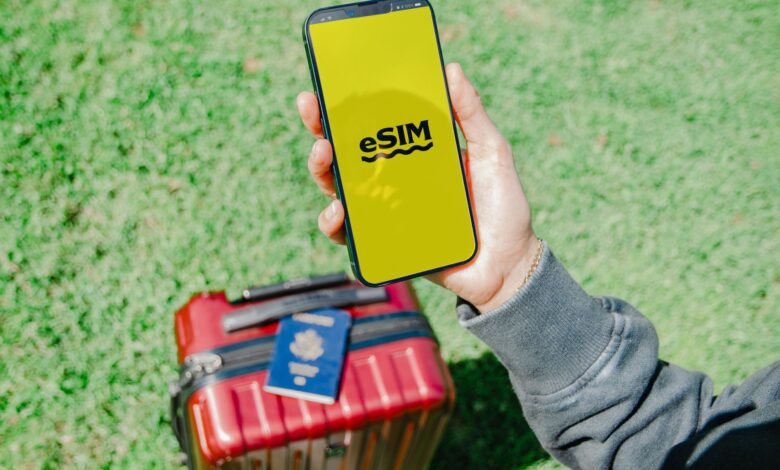
How you transfer eSIM to new iPhone comes down to your carrier, not your phone: if yours supports Apple’s built-in transfer, the two handsets handle it between themselves in a few taps. If it doesn’t, your carrier’s app or website is still the official route — it issues the line to the new phone rather than copying anything across, and Apple’s guide sets out every variant, from QR codes to manual entry, because which one applies depends on your carrier, your account, and the phone you’re leaving behind.
The reason the actual eSIM profile does not move with the phone is because your carrier must provision the line for the new device, and in most cases, once you activate the new device, the old device’s SIM will no longer be functional. In many instances, carriers also have systems in place that must be disabled before a carrier’s activation system will touch your line. It is, therefore, essential to verify your device setup prior to attempting to activate an eSIM on your new phone. Doing so will ensure you are aware of any limitations regarding the available eSIM transfer methods.
Before You Start: What You Need on Both iPhones
Much of what determines the way you go will be mostly done before opening the new phone. Apple has a very short list of things you’ll need to do prior to activating the built-in transfer capability — both phones need to be signed into the same Apple Account; the old phone needs to have its passcode; both phones need to be located close together, Bluetooth needs to be turned on, and both phones need to be running iOS 18.4 (or greater). Apple’s setup guide puts the requirements before the set up instructions for a reason — if you don’t meet one of the requirements, you won’t ever see the option to transfer.
Next, check the phone you’re transferring to. Select Settings > General > About to review the Carrier Lock row. If it says “No SIM Restrictions,” then the phone can accept the eSIM from your carrier without any issues. If it shows the name of a particular carrier, only that carrier has the ability to lift the lock. Apple’s unlock page is clear that the plan won’t work until it is lifted.
Your account can hold the door shut as well, and on purpose. T-Mobile and AT&T each offer a free lock — SIM Protection on one, Wireless Account Lock on the other — and both say their own transfer tools will fail while it’s switched on. T-Mobile’s SIM and eSIM support page states plainly that you’ll get an error if it isn’t off first. That friction is the design, not a bug in your account: the FCC’s SIM swap and port-out rules require carriers to authenticate customers securely before moving a number to another device or provider, and to offer the lock at no cost. You’re not defeating a security feature. You’re switching off the thing that stops someone else doing exactly what you’re doing, and it goes back on once the line works.
Have the numbers — and a second way in — ready first
The support representatives will ask for a device number before they can transfer your mobile number to you, and that’s where the problems begin. In a MacRumors discussion of Verizon activation problems, there is one poster who could not get his phone activated until he provided the IMEI for his second line. He wrote, “I had to give them my imei2 number”, which was a bit confusing because both numbers look almost identical but are completely different in meaning. The IMEI is used to identify the phone; however, dual-SIM iPhones have one IMEI for each line of service. The ICCID identifies a SIM profile that has already been created on the network. The EID identifies the actual eSIM chip inside the device. If the phone has not yet been activated, the support agent may ask for the ICCID during the activation process. Therefore, look at your device’s About screen so that you understand what information is available before you make a call to support.
Be sure to also arrange a way back into your account. The number you’re transferring is the number most people text you at. If there is a delay in the transfer, then those codes will not go to your old phone and will not go to your new phone until it has successfully been activated. Be sure to save backup codes for your most critical logins before starting the process and also set up a secondary method to contact your service provider — either via email that you can access from a laptop or via another number associated with the account that you can call from.
Your pre-transfer sheet
It is best to complete the first four rows before you start transferring your account; the fifth row will be populated once the line has been activated.
| Field | What to record |
|---|---|
| Route you’ll use | Quick Transfer, carrier app or website, QR code, or a support call |
| Device state | Old iPhone passcode, both iOS versions, Bluetooth on, phones nearby |
| Account lock | Whether SIM Protection or Wireless Account Lock is on, and off before the tool runs |
| Alternate contact path | Backup codes saved, a support number you can call from another line |
| Post-cutover checks | Test call, text from a different carrier, cellular data with Wi-Fi off |
The two rows most often skipped by individuals are the lock row and the contact row. If you forget to set up a lock row, that is the most common reason that the carrier’s own tool fails. The reason to have the contact row filled is that you will need it at the time when you cannot receive a code.
Once you have the above set up, you can try the built-in transfer first. This is the only method that will allow you to transfer your account without having to speak to anyone.
Use Apple’s Built-In eSIM Quick Transfer First
You can use this method to bypass your carrier entirely, and there is no cost associated with trying this method since you won’t lose any of your profile or deactivate your account, and every fallback is still available to you. All this method requires is a carrier that is on the list of supported carriers. Be aware that Apple’s list separates carriers by type of activation; there is a difference between “supports eSIM” and “supports Quick Transfer.” If your carrier is only listed as supporting the “other” methods of activation, do not get to the screen where you are unable to select this method and just wait there.
You have two different opportunities to utilize this method. When you set up your new iPhone, the prompts on the screen guide you through this method. If you have completed setting up your new iPhone, you can find the method in the Settings app. Apple’s walkthrough lays out the steps, and they’re short:
- On the new iPhone, open Settings and tap Cellular.
- Tap Set Up Cellular or Add eSIM.
- Choose the plan to transfer, or tap Transfer From Nearby iPhone if your number isn’t listed.
- On the old iPhone, follow the prompt and tap Transfer — or enter the code that appears on the new iPhone.
- Wait for the plan to activate on the new iPhone.
There is a step that most people miss, and that is Step 4. The confirmation for Step 4 will be on the new device; therefore, do not move that device away from the old device until the new device shows a plan that is active.
The process is not just copying the SIM card from the old device to the new device. The carrier is essentially pointing the phone number to the eSIM on the new device. When you activate the plan on the new iPhone, the carrier’s instructions indicate that the previous SIM card will be deactivated. Therefore, this process does not allow for both phones to continue to function, and there is no reversing this once it has occurred.
Finally, pay attention to the final step of the process, as it does not mean that the process is complete when the phone states so. If your phone indicates, Set up your Carrier’s Cellular Plan, select it; this will direct you to the web page of your carrier to continue transferring your account and also result in many accounts being only partially transferred if not selected. You can choose to transfer multiple numbers during the initial transfer on iOS 26 or later, which is helpful if you have both a personal and a work line.
However, not all accounts are capable of taking advantage of this path, and the absence of an ability to do so dictates what your next step consists of.
When Quick Transfer Isn’t Offered or Fails
A missing transfer option should not be considered an error. Instead, the missing transfer option likely has three different causes, each leading to different next steps. Once you determine why your transfer option is missing, you can stop yourself from continuing on with the process that ultimately leads to damaging your phone through deleting your eSIM from your old phone so you can begin again.
The first cause of a missing transfer option is your carrier. Apple has a requirement that a carrier must have the ability to support Quick Transfer. In addition, the list of supported carriers is organised by activation type; therefore, a carrier may have complete support for eSIM but provide no way to transfer an eSIM from one iPhone to another iPhone. Thus, there is nothing wrong with your line, and there is no amount of restarting your phone that will rectify the issue; you will need to request the reissuing of your line through the carrier you are using.
The second category of options occurs when you see a message that states you have an old device. Whenever a screen displays an error regarding your SIM in your old iPhone not being capable of transferring eSIM, it is the carrier preventing the transfer from one iPhone to another; this is not an indication of any problem with your hardware. The community forums from Apple contain many discussions about this message; almost all of the answers listed in these forums relate to the carrier pushing new profiles or issuing codes. It is also during this stage that you find out your carrier has made changes to their toolsets since you last attempted to activate your number with them. For example, in late 2022 T-Mobile removed the ability to perform a self-service SIM swap online and instead required customers to either call or come to an actual location, as evident by the comments made by one customer described at the time. That ability was later reintroduced in early 2026 — through T-Mobile’s mobile application. Whatever guidance you follow, treat your carrier’s current service as the best way to determine if they’re able to assist you with your account rather than relying solely on an assumption.
The third category of transfers is one where the transfer begins and then appears to time out or stall due to poor Wi-Fi connectivity or a highly congested server on the carrier side. Since this category is retry-safe, it is best for you to place both phones in close proximity to the router and attempt the transfer again before making any conclusions.
When transferring an eSIM from one phone to another, you must not delete the eSIM from the old phone. The line still exists on the carrier side, and deleting the profile does not move or cancel it; it only removes the ability to approve the transfer from that device and removes the fallback that would still exist in the event of an issue. All three routes ultimately lead to the reissue path and the form of the reissue will depend on your carrier.
Transfer an eSIM by Carrier: Verizon, T-Mobile, and AT&T
All three major carriers have their own processes for transferring your mobile number via eSIM, and each has different requirements. Both AT&T and T-Mobile require you to first deactivate a specific security setting on your phone; AT&T requires the old phone to be present; T-Mobile limits who can initiate the move to the primary account holder. All of these details are not listed on the iPhone’s Cellular Data Settings Screen, which is why a move could fail when both phones are fully operational.
| Carrier | Where the route starts | Required first | Who’s allowed |
|---|---|---|---|
| Verizon | My Verizon app | Old phone present if the account has one line | Account Owner or Manager |
| T-Mobile | T-Life app | SIM Protection off | Primary Account Holder removes it |
| AT&T | Bring your own device portal | Wireless Account Lock off | Account holder with the one-time PIN |
Verizon’s eSIM transfer method stands apart from the other two carriers, in a positive way. The app doesn’t require providing an IMEI number, ICCID number, or scanning a QR code; per Verizon’s FAQ, the line will be active via Wi-Fi and the app will guide you through the process. The only requirement is authorisation; the account owner or manager is the only person who can transfer a line from one device to another; for a single-line account, the old phone must be present as confirmation of identity; if you have a family plan, the authorisation can come from another device associated with the same account, which is the alternative option if the old handset is no longer functioning.
AT&T & T-Mobile both require you to open the door before anyone else can get in. T-Mobile’s eSIM transfers for new phones follow the T-Life app and their account fraud prevention instructions say that “your number” will have SIM Protection as a free postpaid feature that will prevent your number from being transferred to another device. In addition, if you haven’t disabled it before transferring your eSIM, you’ll get an error message stating that it’s still enabled. An Authorized User can enable SIM Protection but only the Primary Account Holder has the ability to remove it. SIM Protection secretly designates who can transfer an eSIM from one device to another within a household.
AT&T has a similar Wireless Account Lock process but with some extra steps — the instructions for transferring an AT&T line require you to connect both your old and new devices to Wi-Fi before transferring the number. You then have to go to AT&T’s Bring Your Own Device method and select “Switch Device Used On My Line,” then use the One Time PIN given to you by AT&T on the new device in order to initiate the transfer process. To avoid confusion, it is best to deactivate Wireless Account Lock using the myAT&T app on the old device, as you cannot deactivate it otherwise from the new device, per AT&T’s own step list. You cannot deactivate Wireless Account Lock as a Prepaid customer, as AT&T recommends that you contact Customer Care directly in order to resolve issues related to your account, per AT&T’s swap instructions.
There are two important points to note: (1) Before anything else, confirm that you’ve been authorized by the account holder. If you’re on a Verizon family plan (or any T-Mobile family plan) the account holder might not be the one who has possession of the new device; and (2) Record your devices as “locked” from the list above so you can keep track of them until they are fully activated with the new phone number.
Another thing to remember is if you are not using one of these three carriers, there is one carrier in the US that operates under different rules than all the others, and as such, regarding the treatment of its devices, that carrier will cause you to waste a significant amount of your time by following the same approach used for the other carriers.
Google Fi Is Different: You Must Use the Fi App
The steps for Google Fi users outlined in previous sections will not work for you. Google has a separate method for transferring a Google Fi eSIM to a new phone, specifically using the Fi app. The iPhone transfer instructions Google provides for transferring from an old iPhone to a new iPhone explicitly state there is no option to transfer using Apple Settings and that the out-of-box transition within the iPhone is not available. To activate your line, you’ll need to use the Fi app (which is a different tool for a different purpose than the method previously described; it is not the same process). [/APPROVED PARAGHAPH]
This means your setup is slightly different from what was previously explained. You should skip the “carrier” section when setting up the new iPhone in the wizard. Instead, open the Fi app on the new phone, log in with the Google Account associated with your Fi line, and let the app guide you through the activation process. For iOS 17.4 and above, an eSIM is automatically added through the Fi app; however, for previous iOS versions, the app will assist you with scanning a QR code to add the eSIM.
In the event the activation fails, Google provides a specific order to follow to attempt recovery instead of simply restarting. You must first delete the Google Fi eSIM profiles under Settings, next delete the Fi app from your device, then reinstall the Fi app and follow the instructions within the app for adding your eSIM, and finally restart your device. Google also notes to be very cautious with the first step and specifically states that you should only delete the Google Fi profiles in Settings if there is either no connectivity to the old or new devices; failing to do so may result in losing your line altogether if the reinstall does not work.
Two restrictions are simple to overlook when it comes to activating Fi. The first is that activation must be done in the U.S., and that US territories cannot be used. An exception process exists for members of the military and employees of the U.S. State Department who are stationed overseas, according to Google’s activation guide. Second, the Fi application indicates that once a profile has been created, patience is required; after completing the setup process, it may take 5 to 20 minutes to establish a connection, so users should verify a successful connection through a phone call, text message, and web page loading over cellular data, instead of evaluating the signal bars.
If your previous phone wasn’t an Apple product, there is a separate process available, and Apple now offers partial support for that process, with conditions that you should be aware of before you begin.
Coming from an Android Phone Instead of an iPhone
The above information is based on the use of an iPhone at both ends of the transfer. Before the introduction of direct transfer to an iPhone from an Android phone (iOS 26), all transfers from Android devices were routed through the wireless service provider. Although now there is a direct route available for some combinations, the list of applicable wireless carriers is very limited.
In order to transfer from an Android device to an iPhone, the user will need to have an iPhone 11 or newer running iOS 26 or greater; an Android phone running Android 16 or greater from a supported manufacturer; Wi-Fi and Bluetooth enabled on both devices, and to be using a carrier that supports this type of transfer (currently in the U.S., AT&T, Cricket, FirstNet, T-Mobile, Verizon, and Xfinity Mobile are the only listed carriers). Apple’s Android transfer page documents these requirements. The specifications for a transfer from a T-Mobile phone to an iPhone (the T-Mobile’s version) impose stricter limits, such as requiring a Pixel 9 series running Android 16 or greater to transfer to an iPhone 11 or newer running iOS 26 or greater; a PIN must be established; both devices must have Bluetooth enabled; and transfers are not available to customers with Government accounts.
As soon all of the selection boxes have been checked, an iPhone eSIM transfer to an iPhone is processed directly by the iPhone. In the Settings app, tap on the Set Up Cellular option. Then select Transfer from Android (if there is no cellular line currently set up on the iPhone) or Add eSIM (if a line is already set up, then select Transfer from Android). The iPhone generates a QR code which can be scanned with the camera on the Android, and you then select the number from the Android and confirm it. If you have trouble scanning the QR code, Apple also provides an alternate pairing method. On the iPhone, tap on Other Options. Then, on the Android, go to Settings > Google services > All services > Pair with iPhone or iPad and select the Transfer eSIM option. Enter the session ID and pairing code that are displayed on the iPhone.
When transferring eSIM information, the Android SIM will deactivate once the transfer is complete; thus, the eSIM information will be transferred from the old Android device to the iPhone, and the old Android profile will be deleted from the Android device. Additionally, the final instruction that Apple provides is one of the pivotal points in this article: after completing the iPhone eSIM transfer, you must make a call from the iPhone and if it does not connect to the carrier network, then please contact the carrier for assistance.
If an incomplete puzzle is present when initiating an eSIM transfer, either from an older Android phone or an iPhone that has not been activated with a carrier that does not offer support for eSIM, the eSIM transfer will not take place. In these cases, a workaround would be using the carrier activation method or submitting a QR code that was provided to you by your carrier. A support call will still need to be made in order to obtain the necessary information to complete the eSIM transfer.
Fix Common eSIM Transfer Failures
Each type of failure requires a different reaction. If a ten-minute delay is treated like an 80-minute delay, then the messaging will become so divided that it will lead to an unnecessary re-issuance of the line. The messages broken up into three categories are: stalled activation, error message indicating a blocked step, and a line gone completely dead on both devices.
According to Apple’s troubleshooting page, for devices that are unable to complete the setup process, the procedures for activating eSIMs are ordered in a way that requires you to verify the status of the activation bar after completing each step, such as turning on/off Airplane Mode, checking Settings, Cellular, to see if the line appears, then toggle the line on/off again and restart the device. However, there are two steps that are not included: 1) Do not delete the eSIM profile; and 2) Do not factory reset your device. Most often, when the eSIM activation is delayed it is a result of issues related to the carrier provisioning side of the equation. When you delete the eSIM profile, it doesn’t take anything away from the carrier; rather, it simply removes the plan your new device was waiting to activate and causes the delay to change to a reissue. Apple’s troubleshooting page also mentions that it is important to check to see if there are new carrier settings that need to be updated in Settings, General, About, the eSIM section will indicate a version number next to Carrier and if there is an update to be completed, it will show it here as well.
The second group is more useful than it seems since it essentially tells you what is preventing you from continuing with the process (in T-Mobile’s case, they have a very direct error message that explains this specifically, i.e., they state “This number has SIM Protection on” which refers back to the first step). The resolution is to take off the SIM Protection before proceeding with the activation process. Another error indicates that you would need to go to manual configuration because there is a cluster of transfer error messages, and T-Mobile’s advice is to contact support if that does not work either. Another error message talks about having reached the maximum number of eSIM profiles on a phone—there is a maximum of 10 eSIM profiles that can be activated through that process so that you would need to remove the older plan before you can add a new one. The pattern is similar for every carrier; the error clearly describes the precondition that must be met, and if you have to use manual setup, your carrier will give you an address (SM-DP+) and activation code to enter rather than giving you a QR code to scan. T-Mobile’s activation troubleshooting reference is unusually explicit about this.
The final group is the one that causes a lot of concern. When your old device has lost its connection with the network and the new device shows “No SIM” instead of trying to search for a network, this happens because the profile has erred on the new device due to it not being present in Settings, as ONLY your carrier can associate the line to the new device’s identifiers. This is where Apple’s last instructions become critical, because you will want to have a copy of the error message, your phone number, carrier account password/PIN, and the IMEI or EID of the iPhone or device upon calling your carrier. These items are represented on the very first screen of this article, and this is the time when those items are worth the two minutes that it took to obtain them. If the number being transferred is also the number that your carrier uses to send you verification texts, the alternate method of contacting your carrier is just as important, and it is the existence of a second line on the account that will determine whether you will proceed with the issue or wait for the line to become live on your new device that is currently not working.
Once the line becomes active, the last step is to ensure that it works in all of the places that you need it and restore the security settings that have been disabled back to where they were originally.
Test Service Before Removing the Old eSIM
You want your new line to act the same way your old line did. The last row of the sheet at the start of this article shows what that line does. Power off the Wi-Fi and go to a webpage. You can make a check to see if you can use your data; people forget to do that because they assume your data’s not broken when you set up a phone with a data-only SIM card. Then call someone from the new line. After you hang up, call someone back on your new line; incoming calls will eventually fail, but outgoing calls will fail before the incoming calls do. Then send a text message, and then receive a text from a phone on a different carrier. Two iPhones (on the same carrier) can use data to send text messages, but they can’t use SMS.
There are two more checks worth doing. It only takes about a minute to check with your carrier if the new device is showing on your account, because that account is what determines if your next step requires assistance. You should also reboot the device. If the device is active after a reboot, the line is provisioned; however, if the device is not active after a reboot, the line was suspended.
The eSIM of your old device must be removed now; this is a housekeeping item, not part of the transfer of the line. The eSIM profile on the old device is already inactive, and removing it saves you from seeing an inactive line associated with that device later on. If you had previously deactivated SIM Protection or Wireless Account Lock, turn them back on. Given that it protects you the next time someone tries to do something with your account without your permission, the FCC’s rules assume that every customer has the ability to lock the account. Keep your old phone and backup until you’ve been living with the new line for at least 1 to 2 days; only then should you erase your old device if you are trading it in.
It is uncommon but costly to experience a cutover failure two days after the activation. At this point, you learn that the verification code on the new phone was sent to a line that you do not have control of anymore. Make sure the line is functioning on the new device before releasing control of the old device, and everything else will be just a phone.
Frequently Asked Questions
Does moving a line to a new iPhone cost anything?
According to Verizon, the My Verizon app can be used to move your line for free, and carriers are required to allow account locks at no cost by the FCC. Consider any fees quoted for transferring your line as also including questions about the charges, because those charges, when they exist, are typically associated with replacing a SIM kit or changing your plan rather than charging for the move itself.
Will the old iPhone keep working after the transfer?
Apple has stated that when a new iPhone activates your plan, the SIM from your previous phone will deactivate; Verizon has stated the same technically in their FAQ — the old phone will have its service deactivated after the number moves to the new device. One number is provisioned to one device, not duplicated to multiple devices, so this is technically a move.
If something goes wrong, can I move the line back to the old iPhone?
If something goes wrong with the transfer, the only thing you can do is transfer your line back to your old phone; there is no way for users to undo anything on their own via self-service. You would need to transfer it again in the opposite direction —or ask your carrier to re-provision your line to your old device; therefore, the old device still retains its complete contents until the new line passes all test procedures.
What if the old iPhone is broken or lost?
Transferring via device-to-device necessitates being physically close to your old device. Therefore, this route will not work. In every instance where built-in options are not available, Apple’s instructions are to contact your carrier; carriers will have provisioning options and may be able to provide service through carrier activation or QR codes. Their troubleshooting page offers guidance regarding what you need to provide — your phone number, your account password or PIN, and your IMEI or EID for your iPhone.
