
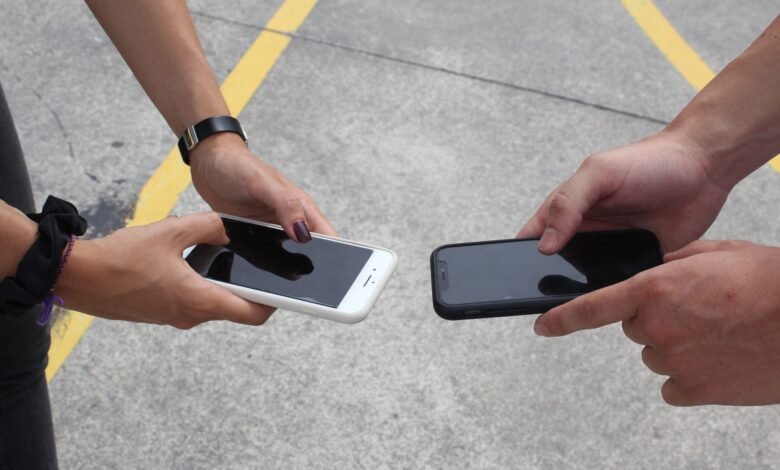
You have two phones in front of you – One with four years’ worth of life documentation on it; the other with nothing on it (but a blank backdrop). You start setting it up, see that it has a ‘progress’ bar, displays as ‘Finished’ and then displays a Home Screen that looks almost identical to that of your previous phone. Almost! Why? Because, whilst most guides will not directly say it to you; the transfer from one Android device to another is atransferofthree distinct systems simultaneously. Each Android system has its own set of rules, limitations, and definitions of “complete”.
Therefore, any given transfer between one Android device and another can deliver every photo but no banking information, all of your installed apps but none of your games saved, or a transfer result stating “Complete” but no information in your Secure Folder on your new phone.
This article guides you through the entire transfer process and provides you with a clear understanding of what files will actually be transferred, the three built-in transfer paths (Android setup, Android Switch, and Samsung Smart Switch), the data types that will remain with your previous phone, and a data inventory tracking template that you can use to verify that your data is indeed present on the new phone before disposing of your previous device. Scope: Android device to Android device and only uses built-in tools.
How Android-to-Android Transfer Actually Works
When you transfer data from Android to Android, the “transfer” you see on screen is really three mechanisms firing at once. Understanding them is the difference between trusting a progress bar and verifying a phone.
During the initial setup process, you can transfer all of your data from an existing device (the Old Phone) to a new device (the New Phone) using a Device to Device setup process. The two devices will connect via Bluetooth, typically using a QR code that you scan on the Old Phone or enter in from the New Phone; then, you enter your Old Phone’s screen lock code to authenticate the transfer. While this step is relatively simple, it has some significant behind-the-scenes functionality. This one step is responsible for unlocking, or releasing, the Old Phone’s Wi-Fi credentials and Google Account information (that you previously entered when you first set up your Old Phone) for use on your New Phone. Once you have entered the lock code on your New Phone, it will retrieve the selected data categories (which Google refers to as “encrypted in transit”) from your Old Phone via this setup process.
Your old phone won’t have a copy of many items that now show up when you sign on to your Google account via a new phone. These items include contacts, calendars, and photos. Once you’ve signed onto your new phone using your Google account, those items automatically re-appear. The instructions for backing up important information with Google clearly state that Photos, videos, and contacts are managed by their own sync services, apart from device backups.
App shells download apps but allow access to app data only when allowed to by users. When you reinstall an app, you will see your app installed on the device because they are linked to your Google Play account, and not to the device itself. The Google Play Help page states your apps and digital content are linked with the Google Account and not just the devices that they are installed on. However, the data in the app (such as saved games, chat history and in-app setup) only transfer with applications that have been designed by the developer to backup that information.
In addition to the above three, there are many things that will not be transferred in any of the above methods. Examples of items that will not move are: Bank-app sessions, two-factor authentication(secret answers), DRM media content, and information that sits in a private storage section of the app’s app. They are excluded by design; they will each be addressed in their individual sections below.
The practical effect is this: when the “Setup” screen says “Setup Complete,” it only means that the setup of Mechanism 1 (copy) has completed, not that the switch is fully switched. The rest of this article is focused on Mechanisms 2, 3, and the excluded items, and how to test each of them.
How to Start: Copying Data During New Phone Setup
The device-to-device transfer process is most effective when initiated during the initial setup of the new device, with the prior device still awake and unlocked. During this stage, there is the greatest chance to copy from many categories, as noted in Google troubleshooting: “Certain data can only be copied during device initialization.” If you miss the setup phase of your new device, you may not be able to copy particular kinds of data later on some devices.
Prepare the old phone first. Google’s preparation list, with the parts that matter:
- Charge both phones. A dropped battery mid-transfer is the classic half-copy.
- Make sure you can unlock the old phone with a PIN, pattern, or password. You will be asked for it, and it is the key that releases the account data.
- Sign in to your Google account on the old phone. Google’s own phrasing is to sign in “to transfer the most data.” An old phone that is not signed in gives the new phone very little.
- Run a backup now and check its timestamp (Settings ▸ Google ▸ All services ▸ Backup, then Back up now). A backup can take up to 24 hours to finish, so starting the transfer before the backup finishes is a gamble. The timestamp is the first entry in the worksheet in section 8.
- Get a strong Wi-Fi connection or a data-capable cable (a note on cables in section 11).
Then run the flow on the new phone:
- Turn on the new device. When asked how you want to set up, choose to set up using another device, and select Android device.
- Scan the QR code shown on the new phone with the old one. If the camera misbehaves, the flow offers a manual pairing code: on the old device, tap the setup notification, choose Try another way on the “Scan the QR code” screen, verify the codes match on both devices, and continue.
- Enter the old phone’s screen lock code. This is the moment the Wi-Fi credentials and Google account hand over.
- Choose the data categories you want and tap copy. On Pixel’s flow you will see Express or Customize — and the distinction is small but worth knowing: Express copies all of the same data as Custom, as long as that data is already backed up to your Google account.
In addition to that, your Android device “will automatically suggest the best available transfer method” (wired or wireless). If the wireless connection is low-speed or not compatible, your flow will prompt you to connect via cable; however, the type of transfer does not affect the content transferred.
What to do if transfer fails? If the transfer process is stuck on a screen (e.g. “Copying…”) for more than 15 minutes, tap on Stop copying. You will be presented with a message (“Copying is Finished”) which includes a report of what data was copied and what data was not copied. It is important to note that the first free report provided by the system will also show you an inventory of your data. If the power or cable becomes disconnected during a transfer, you should be able to continue the transfer process after charging; should your system fail to continue after charging, you will need to perform a factory reset on your new device and begin the transfer process again; therefore, if you are considering interrupting a lengthy transfer, be sure to weigh the consequences.
A change to support for transferring data only once has been made. Previously, Google’s page for transferring data indicated that the transfer could only be done once during setup and wasn’t going to be available later. However, with the introduction of devices that run on Android version 17 or higher (phones like the Pixel 9 and Galaxy Z Flip 8), support for copying additional data after the setup process has been added (you can copy additional data via the Settings menu > Accounts and Backup section). If your phone supports this option, you can consider it a best practice to use the setup window to transfer data—it’s no longer a “one and done” solution.
Transfer Data from Android to Android: What Moves, What Doesn’t
When working on an Android device, you will want to keep this table open as a reference. Google publishes the official lists of what Android-to-Android Copy can and cannot transfer, with Pixel being the most comprehensive version of these lists published by Google. The Generic Android list provides a similar level of detail, which can be found online. Please note that there are two important caveats before reading this list below: This list is a first-party list for copying data from an Android to a Pixel, and that the ‘types of transfers’ supported by the platform may vary between manufacturers and may change as manufacturers modify their platform.
| What it is | How it arrives | The catch |
|---|---|---|
| Contacts (on phone or SIM) | Copied device-to-device | Contacts synced to another account aren’t copied — they re-appear when you sign in |
| Photos & videos (in regular storage) | Copied device-to-device | Media in hidden or locked folders is excluded; your cloud backup is a separate path |
| Text messages + attachments | Copied device-to-device | Messages sitting on the SIM must be moved to phone storage first; indexing can take up to 24 hours |
| Call history | Copied device-to-device | — |
| Apps (from the Play Store) | Re-downloaded onto the new phone | Only apps available at no cost, in your region, and on Play; sideloaded apps don’t come |
| App data (settings, progress, in-app state) | Copied only where the developer enabled it | “Not all apps can back up or restore all settings and data” — Google’s own caveat |
| Music & media files | Copied device-to-device | DRM-protected content is excluded (per Samsung’s list) |
| Device settings | Copied device-to-device | Which settings move “varies by phone and Android version” |
| Wallpaper (custom photo) | Copied device-to-device | Live wallpapers and themes need a reinstall on Galaxy devices |
| Your Google account + its synced data | Re-appears on sign-in | Was never “copied” at all — it arrives with the account |
| Files in Downloads (PDFs and the like) | Not copied by default | Move them manually with a cable or Drive |
| Non-Google accounts and their data | Not copied | You sign in manually on the new phone |
The below list contains all of the ‘will not copy’ items from Google’s current troubleshooting page, and is presented verbatim for substance: downloads (PDF); images, videos and music contained in hidden/locked folders; applications that were not acquired via the Google Play Store; application data for applications not utilizing Android Backup; accounts other than Google accounts, and the associated account data; contacts/calendars that were synced to an account other than Google; ringtones; and various phone settings that may differ based on the specific phone or version.
The interpretation that ties together all of the tables is the ‘synced-account’ rule (data associated with an account arrives with the account rather than with the cable). Samsung uses this same language in its transfer note: “data from synced accounts cannot be transferred via Smart Switch, but will be available on the new device after generating a password or logging in.” Google uses the same functionality in its setup. Therefore, when something seems not to be present, the first question asked is never, “Did the copy fail?” The first question asked is always, “Where does this data actually reside: on the device or in an account?”
Determine your expected answers before starting: the numbers in worksheet A Block (8) are based on this table.
Smart Switch Android to Android: The Galaxy Route
If the destination is Galaxy, there is another addition to the construct: Smart Switch – Samsung’s transfer app, which operates within the Galaxy setup process, but also works separately (simply open the app on both devices and transfer your data without having to complete the setup). Initially, it should be noted that the Smart Switch application allows for transferring files to only Galaxy phones and tablets, and according to Samsung “the list of supported files may vary depending on the device being connected to.”
The area where Galaxy-to-Galaxy is a little different from the general Android Transfer List is with Samsung Ecosystem content. Samsung’s current list of what Smart Switch can transfer from an Android device includes:
- Personal content: contacts, S Planner, calendar, messages, Memo, call logs, Clock, Samsung Pass, Secure Folder, and Internet
- App data: images, music (DRM-free only), videos (DRM-free only), documents, Story Album, and apps
- Settings and more: email, wallpaper, lock screen, Radio, and preferences
The bottom line is some products can only be transferred between two Galaxy devices. For example, if you are transferring from a Pixel or Motorola device to a Galaxy device, the Samsung ecosystem content listed above constitutes the additional features you are gaining – as well as those you are leaving behind when moving to the Galaxy device.
The exclusions are just as important as the included products. Samsung’s cannot be backed up list includes; contacts stored on the sim card, through social media, through Google or work email accounts, calendar events synced with an outside source/calendar stickers, data stored in private storage (verbatim – “Data stored in Private Storage cannot be backed up.”), Social Hub and Premium Push email accounts, as well as live wallpapers and themes that you must download from the Galaxy Store.
There are two reader/witness accounts that spring to mind in the community. The first was a thread started by an S24 Upgrade owner asking what Smart Switch left on the old device, and a Samsung representative responded that, “none of the app data transfer over” via Smart Switch and also indicated that Smart Switch does not transfer over launcher and widget setting — a direct contradiction of “Galaxy to Galaxy transfers everything.” The second example is WhatsApp; it follows its own procedure; you’ll need to complete a backup within the app on the old phone before initiating the transfer, and on the new device, you’ll need to restore from the backup, and the transfer prompts will guide you through that process, but ultimately, the data transfer is via WhatsApp’s backup, not from the device.
I’d like to point out something that will be covered in section 7: the Secure Folder isn’t included in the standard items that are migrated with Smart Switch. On Galaxy devices, it is available as a selectable item, and there are also some limitations associated with it; Samsung has stopped backing up Secure Folder on new devices altogether.
Transfer Apps to New Android Phone: Shells, Data, and What Stays Behind
When you watch the transfer of information from one device to another during the first hour, you can observe how the app download and installation process works. That is, all the icons that were previously on your Google Play Store will start to come back to your new device one at a time as the Google Play Store automatically downloads the list of apps associated with your Google account. However when you start up the apps that you have downloaded and installed, you will notice a wide range of different things; the one app that you used to hit level 200 in a game, will now only have you start at level 1; and some other apps, like Notes, will be completely empty and will require re-entering your information; and the Bank App will require you to fully sign-in again to use it.
The reason this happens is that the shell, or front-end, of the app that you are using is associated with your Google Play Account, based on the Google Play Help Page, which indicates that apps and digital content are linked to your Google Account, and not just your device. This is also the reason that when you switch over to your new device and log in to the same Google Account, your new device will automatically download and install all of the apps listed in your Google Play Account. With that said, there are three restrictions that apply to this process, and to the apps that you download. First of all, in order to download the app from the Play Store, it must be available for free (or at a price that you want to pay) on the Play Store and available to you in your specific geographic area. If you have sideloaded or purchased an app from a different geographic location, those apps will not be available to you, and you should follow Google’s instructions on how to install those apps onto your device. Finally, once you create a new Google Play Account, any content that you had on your previous Google Play Account, will not be transferable to your new Google Play Account, and you will not be able to combine content between two different Google Play Accounts.
Application Content — this is everything saved by an app, and only the developer can decide what goes into this data. Google’s Backup page states that “Not all apps can backup or restore all settings and data” and that the way the Backup system works comes with a limit: According to Android Auto Backup Documentation, only 25 MB of data per app is allowed; for apps exceeding this limit, the Backup service will not create a cloud copy of the app’s content. Additionally, Samsung has a limitation to private storage for Galaxy devices. That explains why the app got transferred but not its data.
Each app will have one of three statuses. Sort yours before you panic:
| What you see | What it means | What to do |
|---|---|---|
| Icon never appears | Not on Play, removed, region-blocked, or sideloaded | Reinstall it manually — or let it go |
| Icon appears, app opens empty | The app doesn’t back up its data, or exceeded the per-app allowance | Sign in and re-configure; the old state stays on the old phone |
| Icon and data both arrive | The developer enabled backup and the data fit | Verify once, then move on |
Note on Timing: Your icon queue isn’t completing until the copies actually finish transferring over. An April 2023 thread on Android Central illustrates this well when an experienced user shares their experience that it usually takes anywhere from “30-60 minutes” to populate, and the most important part they wrote is “You will have to log into each of your apps, websites…etc., manually.”
There are two other factors you may encounter. Missing icons on Apps installed onto the phone have been documented before as a quirk of the Galaxy line since the August 2024 Samsung Community Page: “Apps transferred successfully after being downloaded, but have no icon.” These applications are technically installed and can be launched via Settings ▸ Apps. However, they lack icons. The solution provided by the poster in the original thread was to reinstall the applications but ensure that the Home Screen setting “Add new apps to Home screen” is turned ON. Thus far, a Samsung Member Star (noted in the same original thread) has advised the Samsung Community of “Don’t ever restore your applications or settings.” Additionally, Any non-Play Store application (the APK that was manually installed, or loaded from another store) will not have been transferred. For your records for this step, note these applications, so you can be sure to reinstall them after you complete this step of the guide (these applications belong in your worksheet in Block C).
Lastly, Step 1 of Step 4 to complete this Android setup is if you don’t see an icon for an application in the place where you’d expect it to be, open up the settings menu from your new device, and select Apps. If an application is in the middle of downloading or queuing, even if its icon hasn’t landed yet, you will still see it listed there. If you don’t see an application at all in the list, this means that the transfer process did not fail for that application, but that you need to complete the reinstallation process for the application.
Transfer Text Messages to New Android Phone Without Losing a Thread
Messages are where the phrase “Transfer was completed” is most damaging; due to the fact that text history is the one data consumers cannot reproduce. On the bright side, the process is well understood; if users do three things prior to initiating the transfer, they will minimize this issue.
The first step is to understand the difference between the 2-layer messaging structure. SMS/MMS messages (traditional text messages) exist in the device’s message store, and therefore are part of the backup associated with the device-to-device copy (“text messages + attachments” in section 3) and Google backup. Meanwhile, RCS messages (the newer style of text message that includes read receipts and typing indicators) are located in the messaging application itself. Google backs up the RCS messages only when using Google Messages application, while other messaging applications back up their RCS message threads according to their own specifications.
Before you transfer, do these three things on the old phone:
- Update Google Messages and set it as the default messaging app. Google’s setup guidance lists both steps explicitly, because the message copy is built around the app’s message database.
- Move any SIM-stored messages to phone storage. Some older devices store messages on the SIM card; Google’s Pixel setup page has a dedicated warning for this (“Missing SIM messages”) and tells you to check the SIM storage and move the messages to main storage before the transfer. A SIM’s message store is small, but if it’s where your texts are, the copy will not see them.
- Confirm the backup includes SMS/MMS and run Back up now. In Settings ▸ Google ▸ All services ▸ Backup, check that messages are on the list, and start a fresh backup — the same 24-hour clock applies, so do this before anything else if you’re in a hurry.
After the transfer has been completed, it is important to note that for larger quantities of messages, there could be a delay for up to 24 hours before those messages are completely indexed and available for viewing in the list of messages. Google has also indicated that users should keep their phones connected to a power source during the 24-hour period referred to as “the post-transfer delay” and that users should verify that they have received the messages by searching instead of scrolling down through the list.
This document contains your second of four checks. The check is for Messages searching a specific term that is known to exist (an old message conversation word, a code, or a date you remember) within an hour of activating your new device. To check if your historical Messages have finally been indexed in your new device: Google’s suggested way to test for this is by using the keyword search method to locate the message you know exists on your old device. If it is found, this indicates your history has been transferred to your new device and just needs to finish indexing. If the historical message is not discovered and it has been over 24 hours since your transfer was completed, you should retry the historical search as described in Section 10 rather than assume your history has been lost.
There is one caveat to note when it comes to searching in Messages for WhatsApp, which is the only exception you will encounter when searching through the entire history of Messages. This is because WhatsApp has its own chat history that is not stored as part of your phone’s backup. Thus, the restoration of WhatsApp’s chat history is from WhatsApp’s own cloud backup, and is done only when you first launch the application after transfer to the new device. Google’s recommendation is to not launch the WhatsApp app on the new device until the transfer has been completed; should you accidentally launch WhatsApp prior to the transfer being completed, you will need to remove and reinstall the app (or clear the app’s data) before the transfer process is completed.
Accounts, Logins, and 2FA: The Category That Never Copies
Most of what has been discussed thus far concerns things that come. This section discusses the one type of item that is built not to come with you — and explains why it’s not supposed to.
Apps such as banking applications and password vaults store their most highly confidential information within the app’s private data storage area, which happens to be an area of the device that the platform does not backup. One can look to Samsung’s own exclusion list as the most direct proof of this fact because it states: “Data saved in private storage cannot be backed up.” The rationale behind this is straightforward: these applications are acting as if the particular device is the boundary of trust and, therefore, if you copy an active session (for example, a live connection) or the application secret key to another device without the application being involved, then you were to subvert this trust model; thus the application will require you to verify who you are again on the new phone.
As a result, it will feel like: in the case of your saved passwords, it is highly likely that they will come with you, because services like Google Password Manager will travel along with your account. Likewise, Samsung Pass is a transferable row on the Smart Switch list. Finally, in September 2026, Google announced that Android now allows the movement of passwords and passkeys directly between the supported password managers (e.g., Google’s own password manager, 1Password, Bitwarden, and Dashlane) without the process of having to export/import them. What does not travel are the sessions. In fact, that same Android Central thread referenced in section 5 has a member of the forum adding the additional weight of the layer of the banking application. While the credentials are available, one has to “set up biometric again,” which means that even if one has the password saved in the manager, the banking application still requires one to re-register one’s fingerprints or face to access an account on the new device.
Two-factor authentication is an independent task and does not transfer with the transfer of a phone. The code that authenticates your identity is created by an authenticator application, and this code is not copied over when transferring applications. Which way to transfer codes depends on how the codes were originally set up in the application. Google’s help page for Google Authenticator describes two methods of transferring codes: 1) if you have saved your codes to your Google Account (by using the application’s sync feature), when you sign into your Google Account using the Google Authenticator app on your new phone, then your codes will automatically appear on the new phone because they were encrypted when being synced. When using this method, the codes are encrypted in both transit and at rest. 2) If you were using the Google Authenticator app without saving codes to your Google Account (and therefore did not use the sync feature), then you can’t transfer your codes over to the new phone. You would have to manually hand off the codes from the old phone to the new phone. This would be done by selecting the Transfer accounts option from the menu on the old phone and choosing Export accounts from the menu. This will display a QR code containing the accounts to be transferred (one per batch of accounts). Then, by selecting the Transfer accounts option from the menu on the new phone and choosing Import accounts from the menu, you would scan the QR code. There is an important warning from Google’s help page that should be taken seriously: If a code is synced to your Google Account, upon deleting the code, it is deleted from all of your devices simultaneously. Therefore, be sure that the new phone works properly before doing anything to the old one.
For other authenticator applications, such as Microsoft Authenticator, transferring is specific to each application, and the user must follow the instructions in the application’s own transfer guide. The primary rule to remember from this section is that the codes associated with two-factor authentication are kept within the application.
For Galaxy devices, Secure Folder acts like a secure vault that is locked separately from the Galaxy device itself. The current U.S. troubleshooting guide from Samsung clearly states that there will be no more new backups of Secure Folders, and as of Android version 16 and One UI version 8 or later, users will not be able to restore their Secure Folder user data from their original backup. The only supported method for moving Secure Folder user data from a Samsung Galaxy device to another Samsung Galaxy device is through Smart Switch. After connecting the two devices, press the arrow button next to Apps on the new device, tap Secure Folder, and follow any prompts to confirm the transfer of the data. The vendor advises that users should always check their Secure Folder on the new device to make sure the entire contents have been transferred over properly.
Before you trust a new phone with sensitive information, such as money or security codes, use the banking and payment applications at least once on the new phone and use your authenticator application to generate a functional real code accepted by the service you are testing. Spending 5 minutes doing this type of thorough testing will save you hours/days/weeks of frustration trying to find out why your banking application won’t allow you access to your funds.
The Transfer Inventory: Count What Arrived Before You Move On
A thread on Samsung’s US community, published in May 2026, illustrates the exact reason why this section exists. A user posted that after upgrading from an S24 Ultra to an S26 Ultra, Smart Switch had “successfully transferred everything”, including the secure folder, according to the results page of the transfer. However, upon opening the Secure Folder on the new device, it was empty. The results page was accurate in its message about what had been measured, but did not convey what was important to the user.
To confirm what has been migrated, users will need to verify the contents of the phone by measuring themselves. Counting the contents prior to and migration will be the method used to confirm the migration process. Verifying a migration will require performing sample checks as well as using the migrated content before the old device is turned off and no longer used.
The worksheet provides a means to verify the migration. The worksheet takes only 20 minutes of time and consists of four sections. By using the worksheet, the user will be able to compare the results of the migration and determine if the phone “says” it is complete and the contents are in fact complete.
| Block | What you record | When | Pass condition |
|---|---|---|---|
| A — Pre-transfer counts (old phone) | Contact count; photo/video count (Google Photos ▸ Collections ▸ “On this device” is the honest number for local media); message count; a screenshot of your full installed-apps list; the list of apps that require a sign-in (banking, payment, 2FA, work, social); Secure Folder item count on Galaxy; the last-backup timestamp | Before the transfer starts | Every field filled in — an empty field is a question you’ll have later |
| B — Post-transfer counts (new phone) | The same counts, re-taken | After the transfer — and again 24 hours later | Exact match, or within sync tolerance for account-synced items; every gap explained by the section 3 “won’t copy” list |
| C — Sign-in exceptions | Each app from the Block A list, marked: signed in and usable, or not | As apps finish installing (30–60 minutes is the common window) | Every item green, or consciously deferred with a note |
| D — Erase gates | The four gates from the next section | Before the old phone leaves your hands | All four pass — no exceptions |
Three factors make the process honest. After copying is finished, apps install in the background. The posted 30-60 minute window for app completion is the norm from the users’ comments on the Android Central Forum and icons can appear before the app on some devices. The messages can take up to 24 hours to fully index onto the device. In the event you do a second copy after setting up your phone, the new device will attempt to merge the previous phone’s data with its own. In a small number of instances, the merging process may not be successful for certain types of data, resulting in duplicate entries that will have to be manually deleted.
Perform Block B twice; once once it has been completed, and the second time the next day to capture the late arriving and non-arrivals.
No Old Phone Available? Restoring From a Cloud Backup
There are situations where the old phone may not have been around to cooperate: It could be broke, sold, lost, or it was company property used for work that has now been returned. However, as part of the setup flow process it will expect the old phone to be present. The solution is to follow the backup route, though it can be a little tricky.
When using a new device, the process for backing up from your old device starts by turning the phone on and going through some initial screens until you get to the point where you are asked whether or not to copy data from another device. Tap on the “Skip” option. Next, connect your new smartphone to a Wi-Fi network and log in with the Google Account that has the backup stored. When you reach the screen for copying data, tap on the option titled “Can’t use other device?” You then have the choice of selecting the backup from a list which gives you both the name of the device and the date that it was backed up. You will have to select the data categories that you want to restore. You may also be required to provide the PIN, pattern or password used to unlock your old device when restoring the backup. This is done because some of your backup data is protected by end-to-end encryption with the lock on your old phone, and if you do not have this information, this path may stall out on you. This is another reason that the timestamp on the worksheet backup is important.
Understand exactly what items this method will restore and what it will not. For example, the Google device backup supports the section 10 list of apps & some app data, call logs, contacts, device settings, SMS, MMS and so forth; however, locally stored photos that were never uploaded to Google Photos are not included therein. This is a classic example of a permanent pitfall; local only media (i.e. photos or video) and media deleted from the Google Photos cloud but stored in a locked folder on a device will be lost once old device has been wiped clean. If your prior device is reachable for any reason, take the time to check the Google Photos app as well as the Collections area in the app itself under the section “On This Device” if you find a photo there, it was never uploaded to the cloud and only your previous device will be able to recover it.
Two more critical aspects of restoring data. The first aspect is the single restore window — the only time data categories can be restored is during the setup of the new device. Google’s troubleshooting resources are explicit in stating that not all data types can be copied until after the new device has been initialized, and if you have already set up your new device and did not restore any data, then the only way to restore data is by performing a factory reset of your new phone and re-running the initial setup. Google has made it clear that this is a purchase decision, and you will want to consider this prior to your actual device purchase. The second aspect of restoring is a one previous device rule; you may only restore data from one previous device. If you wish to restore data from an additional device, you must first perform a factory-reset restoration of the new device.
Android to Android Backup: The Second Copy and the Retry Path
The backup is an essential, though often unappreciated, component of the Transfer Process. It ensures that the Transfer is performed in a protected manner, it allows for the use of Section Nine and facilitates the secure erasure of the next Section.
So what exactly is the Backup? In basic terms, it is your Phone’s information saved to your Google Account – however, this information does not always get treated equally by Google. According to Google’s Back Up Page “Some of your data will be encrypted with your Device’s screen lock PIN, Pattern, or Password during the Back Up” which is a security feature as well as the reason why the screen lock is important when restoring. What is included in the Backup: App Information and App Data (in some cases) Call History, Contact Lists, Device Settings, SMS/MMS (and others depending on the Google App). There is also the caveat of: not every App backs up all of their Data and Photos sync independently.
The operating facts. A free 15 GB of backup storage. A backup may take up to 24 hours, and will require a Wi-Fi connection, a charged battery, and idle time in order for the backup to run automatically (Samsung’s Galaxy documentation specifies that the backup will only be created in these circumstances). Data retention is limited; Samsung does state in their support documentation that if a device is idle for 57 days or if backup is turned off, then any data that had previously been backed up may be deleted. A backup taken yesterday does not offer the same protection as one completed today.
The check that matters more than any other in this article — take the last-backup timestamp on the old phone, today, before the transfer:
- Open Settings ▸ Google ▸ All services ▸ Backup and look at Backup details — what’s included, per category.
- Cross-check from a browser: the Google Account dashboard (or the Backups view under Drive ▸ Storage) lists your device backups with names and last-modified dates. If your old phone isn’t in that list with a recent date, there is no backup — and the old phone is the only copy of its local data until you run one.
- If the timestamp is stale, tap Back up now and wait.
Samsung’s Version Rule: You cannot restore a backup taken from a higher Android version onto a device that is running a lower version; if the old device is Android 4 and the new device is running Android 3, the transfer may not be 100 percent complete. Check both phones to determine their respective versions of Android before beginning the transfer; do not wait until the transfer has been completed to check the versions.
The retry paths, matched to the failure you actually have:
- Stuck mid-setup (no progress for 15+ minutes): tap Stop copying, read the “Copying’s done” summary, and note exactly which categories failed.
- Power or cable dropped: recharge and re-start the process — most of the time it resumes; if it refuses, the remaining option is the factory reset and retry.
- Setup finished, items missing, and your phones have the post-setup option: Settings ▸ Accounts & backup ▸ copy data from another device. This is available on all devices running Android 17 and later as well as select earlier devices; if it’s not there, some manufacturers hide an equivalent in Settings, and if none exists, the honest answer is the factory reset. One constraint to respect: if you already transferred during setup, any additional data must come from that same device.
- Pixel 9 and later, missing data after setup: Settings ▸ Back up or copy data ▸ Copy data Start, then re-pair with the old phone and pick the missing categories.
- WhatsApp specifically: the rule from section 6 — don’t open it on the new phone before the transfer; if you did, uninstall and reinstall (or clear its storage) before retrying.
Samsung has its own system for backing up alongside the system provided by Google, known as the Samsung Cloud. Similar to Google’s cloud, Samsung offers auto back-up capabilities with a 24-hour cycle as well as the option to save specific Samsung device apps, as listed in section 4. It would be beneficial to review the contents of your Samsung Cloud account prior to deleting anything on your device and keep in mind that the Secure Folder (which Samsung previously used for backing up data) is no longer being offered with new backups (section 7).
Android to Android File Transfer USB: The Cable Route
The cable serves as the ideal means of transferring content; however, it also functions as the only device capable of salvaging any lingering data that wasn’t transferred during the initial setup process. The reason why cable data transmission(s) fail to meet expectations is due to the misinterpretation of “USB,” which actually serves a dual role, but functionally should be considered separately.
Task one concerns a device-to-device transfer, specifically, the connection between two devices at setup via a data transfer cable. After connecting both devices with a compatible cable, the same process described in the previous section for connecting via WiFi takes place; namely, the user selects which categories of information to transfer, and then selects them from the categories presented on the Google setup pages. The Google setup pages clearly state that a transfer made using a transfer cable does not require the use of a QR code and that transfers over a cable utilize the same types of data as transfer(s) via Wi-Fi. Transferring data with Samsung Galaxy devices using Smart Switch as a standalone method also uses the same process; therefore, if you haven’t already done so, be sure to read the entire Samsung user guide. This is particularly beneficial because it includes information that is likely very useful, especially if it contradicts any preconceived notions about using Smart Switch.
Samsung has provided instructions on how to transfer data from an old Samsung Galaxy phone to a new Samsung Galaxy phone using Smart Switch software. You will need the USB cable that came with your old Samsung Galaxy phone in order to connect the two devices. In cases where you have an older style of Samsung Galaxy phone and a newer style of Samsung Galaxy phone, you may need a USB OTG adapter. With newer models of Samsung Galaxy phones, the USB OTG adapter does not come included with the phone. When you connect the two devices with the USB cable, you will need to open the Smart Switch software on each device, select the “Send from this phone” option on the old device, select “Cable” on the new device, tap on “Connect” on the old device, choose how much of your data you want to transfer (everything, just your accounts, calls, contacts, messages, or custom), and then press the “Transfer” button on the device you are using to transfer your data. You will see a confirmation message on each device when the data has been transferred successfully. Samsung makes the following recommendations regarding the Smart Switch application: Ensure both devices are charged to at least 20% before beginning the transfer. However, it is recommended that both devices be charged fully for best results. Samsung also states that the reason it is recommended that transfers be done using cables is because the cable method allows for the largest variety of data to be transferred; however, a major disadvantage of the cable method is that once the data transfer is started, the phones cannot remain connected to a charger. Therefore, if the estimated time to complete a data transfer is over an hour, it is recommended to complete the data transfer wirelessly so that both phones can remain connected to their chargers. In summary, while a cable provides the most variety of data transfer, a wireless transfer allows for less wear on the batteries of the two phones being used.
Many data transfers fail due to the following cable fact: not every USB-C cable can be used to transfer data. Many cables, especially cheaper, thinner cables that are designed only to charge devices, contain no data wires. Google’s instructions for setting up their phone also have this same warning, as provided by Google, and most vendors of cables sell different types of charge-only cables. To test whether a cable is a data cable or not, you must do a simple two-second test: Plug the cable into a computer. If the phone mounts to the computer and you are able to access its file structure, then the cable is a data cable; if the phone only charges when the cable is plugged in, then the cable is not a data cable.
For Job 2, when transferring files from phone to computer, use the cable a second time once the first transfer is completed. After connecting the phone to the computer via USB for section 3 of the transfer, make sure to switch the USB mode from charging to MTP (Media Transfer Protocol) on your phone. Newer phone models may default to a charging-only mode, so if nothing appears on your computer, unlock your phone and swipe down on the notification bar until you get to the USB notification and select File Transfer. Now you can proceed to copy over any files that were not included in section 3, such as the Downloads folder, any media files stored in hidden folders, ringtones, and any other documents.
As for how fast this process will be, it is important to understand that the actual speed will depend on the slowest component of the entire transfer process: the version of the USB controller in your phone, the type of cable you’re using, and the storage in your phone. In most cases, the transfer speed when using a USB 2.0 cable will be approximately 30 megabytes per second. Conversely, transferring data using USB 3.x technology will yield much quicker speeds. When transferring large files (like videos), the cable is faster than Wi-Fi, but when transferring multiple small files (like photos), there is no way to speed up that transfer process, even with all other variables being equals.
Verify the New Android Before Erasing the Old Phone
With a new phone, a worksheet showing what data should be transferred to the new phone, and a Transfer (i.e., completed) label from your service provider, you have four steps to complete before you can part with your old phone (i.e., sell, trade, recycle, or return). They are the whole point of this article compressed:
- The counts reconcile. Block B matches Block A, within sync tolerance for account-synced items, and every gap has a name from the section 3 “won’t copy” list. A gap without a name is not a gap — it’s a fire.
- The sign-in exceptions are green. Every banking, payment, and 2FA app from Block C is signed in, usable, and — for the bank apps — biometrically re-enrolled. The authenticator generated at least one code that a real service accepted.
- The messages check passed. The known-keyword search surfaced the history, or 24 hours have passed since the copy with no missing content.
- The second copy exists. The old phone’s last-backup timestamp is from today (or the data you didn’t copy was deliberately not copied, and you’ve said so in writing). The cloud is not a rumor.
Google’s policy on completing the last step of data removal is simple: You can only erase data once you confirm that you have transferred all of your data. The service provider’s data backup and recovery instructions state that once you complete a backup on their platform, you will be able to completely reset the phone. The critical part of this statement is the word “can” — the service provider cannot confirm your backup was successful; you need to supply that confirmation.
The order, once the gates pass:
- Run one final backup on the old phone and confirm its timestamp.
- Sign out of your accounts before the wipe. Android ties factory-reset protection to the signed-in account: a phone erased while your account is still on it can remain locked to that account, which is how a “clean” resale becomes a brick for the buyer.
- Factory reset (Settings ▸ System ▸ Reset on most Androids; Settings ▸ General management ▸ Reset on Galaxy).
- Handle the SIM/eSIM, and take your Secure Folder contents with you if the vault didn’t transfer (section 7).
At this point, the old phone will be redundant (meaning the old phone is worthless as the new phone has become the primary version of the old phone and the online backup is the second copy). In essence, this is what “done” means.
Frequently Asked Questions
When you transfer your contents over, you are making a copy of your old content, and will still have copies left on your old phone until you delete it yourself. Please see Samsung’s FAQ section that directly answers whether the content added to your destination will be an exact duplicate or mirror of your content on your previous phone. Essentially, if you use your old phone alongside the new phone while the new one sets itself up, you will continue to see everything on your old phone, until you delete that content yourself (as previously mentioned).
Yes, you can copy data over even after you have completed setting up your new phone in some cases, and it really comes down to the model of your phone. All phones with Android 17 and later will have, as do certain older phones, in the Accounts & Backup section of Settings, an option that allows you to copy data from another phone, and it must be from the same phone that you transferred contents from. Additionally, for a few days after completing the setup, some of the makers of phones retain a “Finish Setting Up” item in the Settings menu. If your phone does not have either of these items, then you will need to do a factory reset of your new phone to do the setup transfer again — be sure to back up anything new on the new phone, as performing a reset erases any content on it.
The transfer indicates that it is complete but the applications or photos are not present. What should you do now? You should act in this order. First, check to see if the missing items are on the “won’t copy” list in Section 3 (applications, downloads, hidden folders/media, apps not from the Play Store, apps from non-Google accounts) – these items are not considered “missing”, rather they never fell under the scope of the transfer. Second, be patient with the delay; all applications will take about 30-60 minutes to populate on the new device, and indexing messages may take up to 24 hours to fully complete. Third, if you are looking for pictures specifically, check to see if those pictures exist in the Google Cloud instead of on your phone – if you have access to them through your Google account, those will be present after you sign into your Google account. Fourth, if you notice any missing items, you can use the option on your phone after the initial setup (refer to Section 10 of this document) to retrieve all photos, videos, and applications from your previous device.
Will My Bank Applications and Two-Step Authentication Codes be Transferred? No, this is how it is intended to work. Your banking and payment sessions, biometric enrolment information, and authenticator codes occupy private application space on the device (as described in Section 7). Any passwords that you saved could potentially have been transferred along with your account; and with the new feature coming to Android in September 2026, it will allow the exchange of passwords and passcodes between supported password managers. However, the sessions themselves will not transfer. Therefore, make arrangements for re-logging into your accounts and employ your authenticator app before you dispose of your old phone.
Do I have to have both the old and new devices from the exact same company or model? You do not. The standard method through which you set up your phone has been designed to accommodate all brands, so you can use one Android device to transfer data to any other Android device using a wire (cable) or wireless (Wi-Fi). However, the types of files that can be transferred depend on the specific devices you are transferring from and to and will vary depending upon the device that you are connected to. Additionally, there are two exceptions to these general rules; the first is that all items associated with the Samsung ecosystem (like Memo and Secure Folder) may only be transferred between Samsung devices and the second is that if you are backing up or transferring items from a phone that has a newer version of Android to a phone that has an older version of Android, those items will not be restored to the older device.
